Mastering Your Schedule: A Guide to the Vendaly Calendar & Live Availability
Managing a packed schedule is one of the hardest parts of running a vendor business. From coordinating standard operating hours to navigating unexpected days off and sudden event bookings, it can be a logistical nightmare to keep clients and partners updated.
That’s where the Vendaly Calendar Management system steps in. Built right into your vendor dashboard, this tool is designed to take the friction completely out of scheduling. In this post, we’re going to walk through how the calendar works under the hood and provide a step-by-step guide to dialling in your live availability.
📅 The Core Concepts
To make the calendar both flexible and easy to use, it is built around two primary concepts: Recurring Availability and Date-Specific Blockouts.
1. Weekly Recurring Availability
This is your baseline. Your recurring availability defines your standard working hours for a typical week. For each day of the week (Monday through Sunday), you have the ability to toggle yourself as Available or Unavailable. If you are available, you can specify your exact window (e.g., 09:00 AM down to 05:00 PM).
2. Your booked events and date-specific blockouts (Exceptions)
Rarely does a schedule stay identical week-in and week-out. You might have a doctor’s appointment on a Tuesday afternoon, or perhaps you’re heading off on a long weekend holiday. And as bookings come in, you want to show your availability to potential bookers.
For these scenarios, the system provides Blockouts. Blockouts allow you to select a specific date on the calendar and restrict access to either a partial time slot or the entire day. The intuitive interface visually tracks these exceptions, colouring full-day blockouts, partial blockouts, and available days distinctly so you can see your week at a glance.
If an event booking is confirmed through Vendaly, it automatically integrates into your calendar schedule as a blocked slot!
🛠 Step-by-Step: Setting Up Your Live Availability
Setting up your schedule ensures that clients and integrated systems only ever see—and request—times where you are genuinely free to operate.
Here’s JK demoing how to do so:
Step 1: Navigating to the Calendar
Log in to your dashboard and navigate straight to the Schedule page. The page shows a full calendar for the month in the view with upcoming events on the right and colour coded events on each day in the main view.
Step 2: Set Your Baseline Weekly Hours
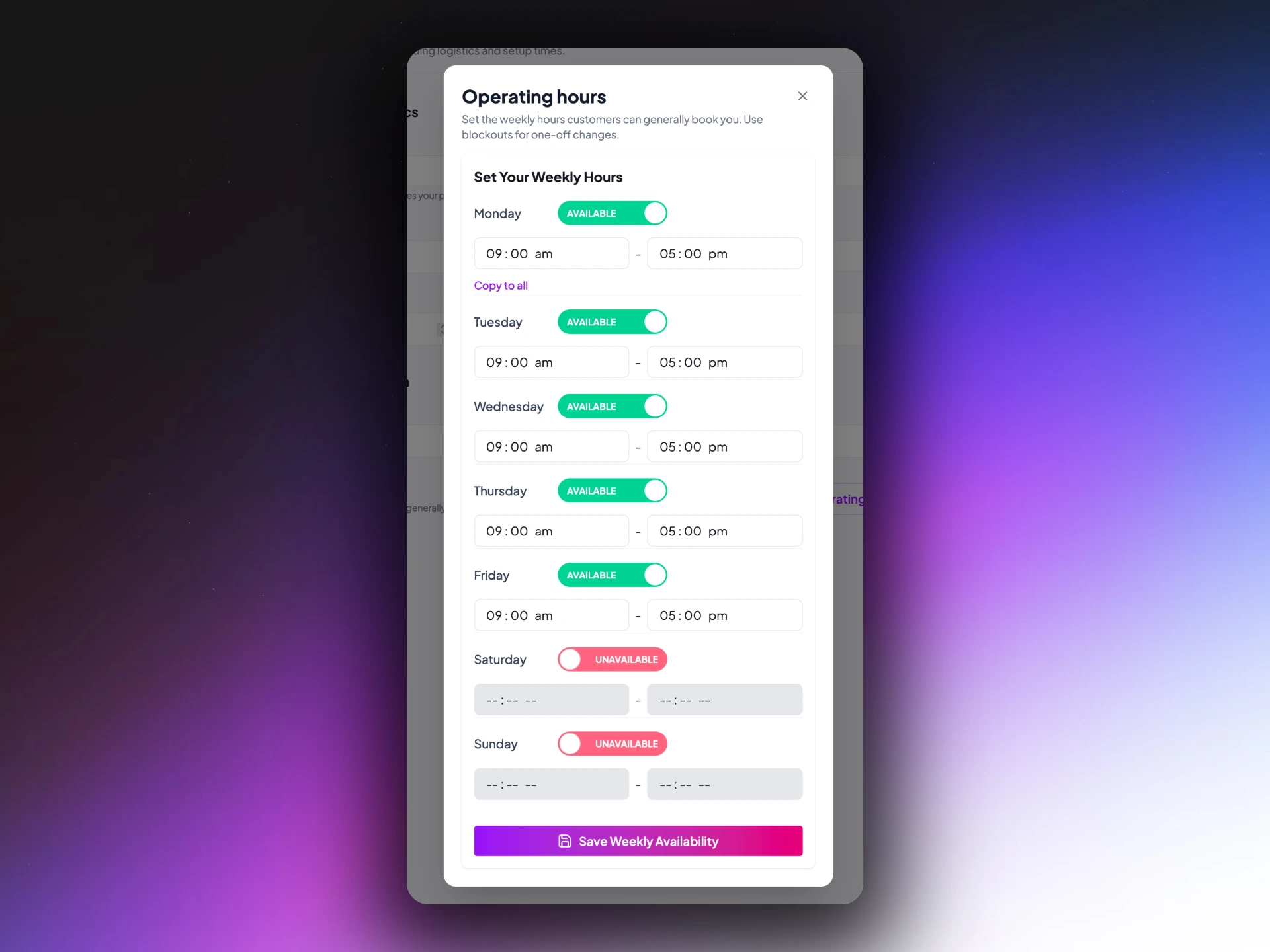
You can set your operating hours in two place. The first is on the operational tab of your business profile and the second is via the calendar view via the submenu accessed via the three dots. Set your operating hours from this pop out modal.
- Go through each day of the week. By default, days are toggled to Available with standard 9:00 to 17:00 hours.
- Adjust the
startandendtimes for the days you operate. - If you have a day off, simply flip the toggle to Unavailable. The time inputs will lock, preventing any bookings for that day uniformly across your calendar.
- Pro-tip: If you work standard weekday hours (e.g. 9-to-5, Monday to Friday), fill out Monday first and click the “Copy to all” button immediately below it to instantly mirror those hours to the rest of the week and then toggle off the Sat & Sun.
- Hit the Save Weekly Availability button.
Step 3: Add Your Blockout Exceptions
Once your baseline is saved, it’s time to mark your holidays or unavailable slots.
- Click on any specific day directly within the Interactive Calendar.
- To the left of the calendar, you will see a Blockouts for [Selected Date] panel appear.
- For Partial Blocks: Enter a start time and an end time (e.g., 12:00 - 14:00 for a long lunch or doctor’s appointment). You can also add an optional note solely for your own reference. Click Add Blockout.
- For Full Days: Simply click the Block Full Day button to mark the entire 24-hour period off-limits.
- If your plans change, you can click the red trash can icon next to any blockout to remove it and open your availability back up instantly.
Wrapping Up
By taking 5 minutes to define your weekly hours and mark your upcoming holidays using the Vendaly Calendar, you maintain absolute control over your schedule—preventing awkward double-bookings and allowing you to operate your business on your own terms.
Take control of your schedule today! Log into the dashboard and try it out.
To the dashboard!